
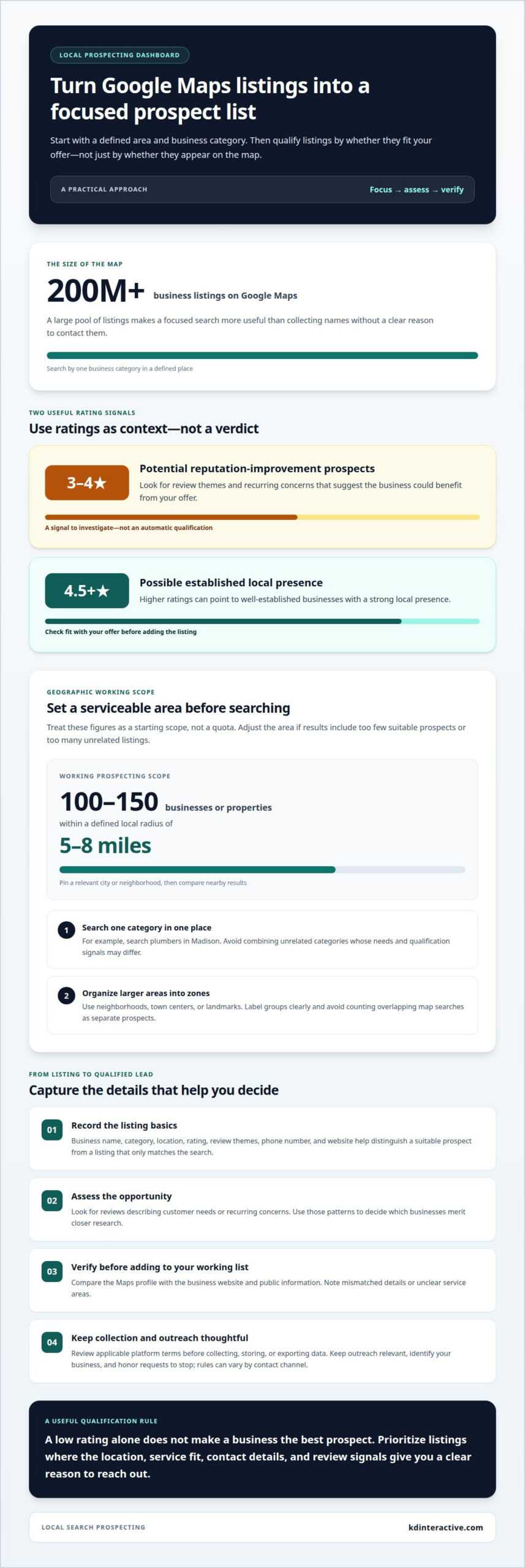
The businesses with the lowest ratings aren’t automatically the best prospects. To use Google Maps for lead generation, first choose a business type and local area, then assess each listing for signs that its owner could benefit from your offer. Businesses rated 3 to 4 stars may be prospects for reputation improvement, while ratings of 4.5 stars or higher can point to well-established businesses with a strong local presence.
It’s easy to see a map full of pins and assume the hard part is finding names. The real work is turning listings into a focused, useful prospect list. This guide explains how to choose businesses to target, search by category and location, and organize promising listings for follow-up. You’ll also learn how Google Maps lead generation tools can streamline prospecting, so you can focus on relevant local opportunities instead of collecting names without a plan.
Key Takeaways
- Prioritize businesses whose ratings and reviews reveal a clear opportunity for the service you offer.
- Turn useful listing details into an organized prospect list, and use a scraper to reduce repetitive data collection.
- Keep prospecting focused by defining a local area before searching, rather than gathering businesses from too wide a region.
- Choose mapping and lead generation tools based on how they help you find, sort, and assess relevant local prospects.
What businesses use Google Maps for lead generation?
A practical way to learn how to use google maps for lead generation is to search by business category and location. Review each listing for signs that the business fits your target, then build a prospect list from relevant public profile details rather than collecting names without a purpose.
Choose Business Categories and Geographic Areas
1. Search one category in a defined place, such as plumbers in Madison. A focused query helps you compare local businesses and identify relevant prospects. Try a specific category first, then adjust the location to match where your offer applies. Avoid combining unrelated categories, since their needs and qualification signals can differ.
Find Niche Local Businesses
2. Search specialized terms, such as independent bookstores or mobile pet groomers, and inspect each profile. A business may use a broader category, so try related phrases and read its description. Google Maps has over 200 million business listings. Ratings and review themes can help identify prospects, including businesses that may benefit from reputation support.
- Capture listing details. Record the business name, category, rating, review themes, phone number, website, and location. These fields help distinguish a suitable prospect from a listing that only matches the search.
- Assess the opportunity. Look for reviews that describe customer needs or recurring concerns. Teams refining how to use google maps for lead generation can use these patterns to decide which businesses merit closer research.
- Verify each prospect. Compare the Maps profile with the business’s listed website and public information. Note mismatched details or unclear service areas before adding the record to your working list.
- Consider other sources. Chamber directories, industry associations, and community listings can reveal niche businesses that a Maps search misses. Compare details before adding a prospect to an export.
- Collect and contact thoughtfully. Google Maps Platform terms and limits depend on the product, so review applicable terms before collecting, storing, or exporting data. Keep outreach relevant, identify your business, and honor requests to stop. Rules can vary by contact channel.
Building prospect lists with a Google Maps scraper
A scraper can collect listing details faster than manual copying. Use it to organize prospects, then review each record before sales outreach.
- Define the prospect criteria. Choose a business category, location, and clear reason to reach out. For example, a commercial cleaning company might focus on local offices with outdated websites. Specific criteria help separate a targeted prospect from a listing that only shares the right category.
- Configure the data fields. Collect only details that support qualification and follow-up, such as business name, category, address, phone number, website, rating, and review themes. Keep the original listing details alongside your notes. This makes it easier to spot mismatched records and understand why a business entered the sales pipeline.
- Review scraper terms and output. Use a tool whose collection method follows applicable platform terms. Inspect a sample export for missing phone numbers, duplicate profiles, and inconsistent addresses before relying on it. A clean file saves time later, but a scraper cannot assess whether a business genuinely fits your offer.
- Move beyond a spreadsheet. When the list grows, organize records in a customer relationship management system or another sales workspace. Add fields for lead source, qualification status, assigned owner, and last contact. A record for a Madison landscaping company, for example, can move from “new” to “qualified” without creating another spreadsheet copy.
- Plan relevant outreach. Use profile details to shape a specific first contact, not a generic pitch. A review mentioning difficulty booking may suggest a useful conversation point. Check the company’s website and public social media profiles for context, then record the reason for contacting each prospect and any response.
Patterns in the list can also guide location-specific pages and useful business content. Content creation for local search can help align those pages with the needs your prospect research reveals.
Geographically targeted local lead generation
Defining a geographic area makes prospecting more focused. Set boundaries before searching, then compare coverage and relevance across nearby communities.
- Choose a serviceable starting area. Pin the location where your offer is most relevant, such as a city or neighborhood. A prospecting approach can identify 100 to 150 businesses or properties within 5 to 8 miles. Treat this as a working scope, not a fixed quota. Adjust the area when the map shows too few suitable prospects or too many unrelated listings.
- Search by category within that boundary. Pair a specific business type with the target location, then inspect nearby results. For example, a commercial painter could search for offices around a defined Milwaukee service area. This geographic filter keeps the list tied to realistic travel, delivery, or service coverage instead of distant businesses.
- Divide larger areas into manageable zones. Use neighborhoods, town centers, or recognizable landmarks to organize searches. Label each group clearly, such as “north side” or “downtown,” and avoid treating overlapping map searches as separate prospects. This helps identify gaps in coverage and keeps targeted outreach organized by place.
- Compare prospect quality across locations. Review whether listings match your offer, not just whether they fall inside the boundary. A local business with relevant services, complete contact details, and reviews describing a need may be a stronger prospect than a nearby but unrelated profile. Record the reason for prioritizing each area.
- Track geographic results over time. Add a location field to your prospect list and note which areas produce meaningful replies or conversions. If a zone repeatedly yields poor-fit leads, refine its categories or boundaries. If another area produces stronger conversations, focus future searches there. Use those patterns to guide the next map search.
Google Maps lead generation tools
When deciding how to use Google Maps for lead generation, match each tool to a specific task: discovery, organization, qualification, or follow-up. A scraper may speed up data collection, but it can’t determine which prospects fit your offer.
Google Maps API and lead generation tool costs vary by product and usage. For an API, cost factors include enabled services and request volume; other tools may use different billing models.
- Start with Google Maps for discovery. Search a business category and location, then inspect listings manually. This works well for a small prospect batch or a niche search where profile details need close review.
- Use an extraction tool selectively. A scraper can collect listing fields into an export for sorting. Before using one, review its collection method and applicable platform terms. Check the output for duplicates and missing details rather than assuming every extracted record is accurate.
- Organize prospects in a spreadsheet or CRM. Add fields for location, lead source, fit, status, and next action. A spreadsheet can support a small list; customer relationship management software can keep ownership and follow-up history together as prospecting expands.
- Enrich records with relevant context. Compare a Maps profile with its listed website and public social media pages. Note useful signals, such as service categories or review topics, then record why each business merits outreach. Don’t treat an automated score as proof of fit.
- Measure which strategies create useful conversations. Track replies and qualified opportunities by search area, business type, and tool. Teams refining how to use Google Maps for lead generation can adjust searches when a category produces poor-fit prospects and focus on segments that prompt stronger conversations.
Use tools to support judgment, not replace it. Build a stronger local map strategy around the businesses you want to reach.
KD Interactive: Google Map Pack with AI Assistant
KD Interactive’s Google Map Pack with AI Assistant is a natural next step if prospecting reveals that your business needs stronger local visibility. Finding businesses on Maps can inform your lead strategy, while Local SEO Services help improve visibility in local search.
Turn to KD Interactive when your business needs a more structured approach to local search. Content Creation can help develop useful material about your services and the places you serve. Press Release Distribution can help share business news.
Share the areas and services you want to prioritize, along with the local search challenges you’re working through. This gives the conversation a practical starting point. Contact KD Interactive to discuss your local visibility goals.
Turn local research into your next growth move
Knowing how to use Google Maps for lead generation is most valuable when prospecting helps clarify your business direction. Treat each new list as a signal about which local needs your business understands best. That insight can shape a more focused growth plan, from refining your offer to choosing which communities deserve more attention.
Your own visibility matters, too. KD Interactive offers Local SEO Services, Content Creation, and Press Release Distribution to help businesses build their presence in local search. These services can complement a thoughtful approach to reaching relevant prospects and strengthening your visibility in the communities you serve.
Contact KD Interactive to discuss your local search goals and the next step for your business. Keep learning from the local market, and put those insights to work with confidence.
Frequently Asked Questions
How do I search Google Maps for businesses by industry and location?
Enter a business type and place together, such as “accountants in Madison,” in Google Maps. To narrow the results, try a more specific phrase like “tax accountants near downtown Madison.” For specialized categories, try related terms too, since a business may describe itself differently than you expect. Review the map and results list to find businesses in the area you intend to serve.
How can I export or organize business leads from Google Maps?
Google Maps is useful for finding listings, but don’t assume every profile can be exported directly. For a short prospect list, record relevant details in a spreadsheet and note why each business fits. If you use a third-party tool to export listings, assess its collection method and applicable terms. Remove duplicates and review the details before using the list for sales activity.
What contact details can I find on a Google Maps business listing?
A business profile may show its name, address, phone number, website, category, hours, photos, and customer reviews. Details vary by listing, so don’t assume every profile includes a direct phone number or website. If a listing has no website field, for example, use its displayed business name to find its public online presence before deciding whether it meets your prospect criteria.
What Google Maps tools or extensions help with lead generation?
Useful options include Google Maps for manual discovery, spreadsheets for organizing prospects, and customer relationship management software for tracking sales activity. Browser extensions or scraping tools may collect listing details, but their capabilities and data practices vary. Choose tools for the tasks you need to complete, such as finding businesses, reviewing profiles, or managing follow-up. Keep human review in the process to catch poor matches.
Does Google Maps allow scraping business listings or automated lead collection?
Don’t assume automated scraping or bulk collection is permitted. Google Maps Platform terms and limits depend on the product and its use, so review the applicable terms before collecting, storing, or exporting listing data. An approved interface may have different conditions from a third-party extension. For a cautious workflow, use permitted methods, collect only relevant details, and assess each prospect before contacting them.
How to contact businesses found on Google Maps without violating spam laws?
Keep outreach relevant, identify your business, and honor requests to stop. Rules vary by contact channel, so review the applicable requirements before contacting prospects.