
Two Google listings for one business don’t automatically qualify for a merge. Merging duplicate Google Business Profiles is appropriate when both profiles represent the same business and show the same information. Google won’t merge listings at different addresses. A business should have one profile per location, not separate listings for each service.
Finding duplicate listings can raise concerns about losing reviews, replies, or access to the profile customers use. The right next step depends on whether both listings represent the same business and whether you can manage them.
This guide explains when a merge may be suitable, what can happen to reviews and replies, and how to request access or claim a profile. You’ll also learn when to update an existing profile instead, so you can resolve the duplicate without creating more confusion for customers.
Key Takeaways
- Before removing a listing, confirm it’s the duplicate you intend to remove; deletion also removes its content and linked managers.
- Plan for reviews to combine after a merge, but save important reply details because replies may be lost.
- If someone else owns the profile, request access and watch for the owner’s response within the 3-day response period.
- Keep separate profiles for distinct eligible businesses at the same address when their names and visible signage clearly distinguish them.
Can You Merge Two Google Business Profiles?
Yes, if both listings represent the same business and show the same information. First decide whether the issue calls for a merge, an address update, or a report.
-
Assess Duplicate Service-Area Listings
Check whether each listing represents the same service-area business, not a separate branch or eligible business. A service-area business should have one profile, and businesses offering multiple services should list them together rather than creating a profile for each service. Google allows up to 20 service areas on a profile, so review the existing coverage before considering another listing.
-
Choose Between Merging and Removing Listings
Compare the names, addresses, and business details before requesting a merge. Merging duplicate Google Business Profiles is for listings representing the same business. Report a listing instead if it appears malicious or misrepresents your business. Before removing a duplicate, choose carefully: removal deletes that profile’s content and linked managers. Confirm which listing customers should use before acting, since changes to duplicate listings can have consequences.
- Handle a move as an address update, not a merge. Update the existing profile when the business relocates; Google won’t merge listings showing different addresses. This keeps the established listing as the one to manage, rather than treating the new location as a second profile.
- Prevent duplicate listings from returning by using one profile for each business and keeping its details consistent. When an address or other profile information changes, submit the edit on the existing listing; Google says edits usually take up to 10 minutes to review, but review can take up to 30 days. If you use listing synchronization, compare its destination coverage and update frequency with your needs. Its costs depend on the coverage and synchronization scope you choose.
What happens to reviews and replies after a merge
When two profiles are merged, their reviews are combined, but replies may be lost. Keep listings separate if they represent distinct locations or businesses, and verify that they describe the same business before merging.
- Businesses with multiple locations should keep a separate profile for each distinct location. Compare each listing’s address and business details first. If two listings refer to the same location and business, assess them as possible duplicates. Keep separate branches distinct so customers see the correct location.
- Before merging duplicate Google Business Profiles, compare the business names, addresses, and information shown on both listings. A mistaken merge can combine reviews from separate businesses and may cost you existing replies. Leave profiles separate if they belong to different businesses. Report a misleading or malicious listing rather than merging it into your own.
- Search the business name and location in Google Maps to find a suspected duplicate, then compare the listing details. To report a misleading listing, open it in Maps and use the reporting option. For a legitimate duplicate, note both profile IDs and submit a merge request through Google Business Help Centre by selecting the relevant profile and merge issue.
- Expect reviews to combine, but save key reply information before submitting your request. Google provides no guidance on whether photos or Q&A content transfer, so keep copies of useful content. Don’t assume posts will transfer either. Review the merged profile afterward and restore any important, current information. Google reviews merge requests, so record the profile IDs and submission details, then monitor the profiles for changes in status or visibility. Google does not state a turnaround time for the review.
Claiming a duplicate or requesting access
If a profile already exists, request access before creating another listing. Follow these steps to pursue ownership and keep the business information under the right account.
- Open the existing Google Business Profile and start an ownership or access request. Confirm that the listing represents your business and that the business is eligible for a profile. Provide the correct account details so the current owner can identify who is requesting access. Don’t create another listing to work around an ownership issue, since that could add another duplicate to resolve.
- Track the request and allow the current owner 3 days to respond. If they approve it, you’ll receive an email and can manage the profile. If they deny it, you’ll also receive an email; you can appeal the denial or suggest an edit to the business information in Google Maps.
- If the owner doesn’t respond after 3 days, return to the request flow and look for the option to claim the profile. That option may be available, but it isn’t shown in every case. Follow the claim steps presented for that listing and keep the request details, including the profile name and account used, for reference.
- After access is granted, review the profile’s ownership settings before changing roles. A new owner or manager must wait 7 days before removing other owners or managers, or transferring primary ownership. Use that period to confirm the business details and identify the appropriate account for long-term ownership. If Google requests video verification, allow up to 5 business days for its review.
Focus on the existing listing while your request is pending. A clear ownership path helps prevent a new profile for the same eligible business and gives you a defined next step after approval or denial.
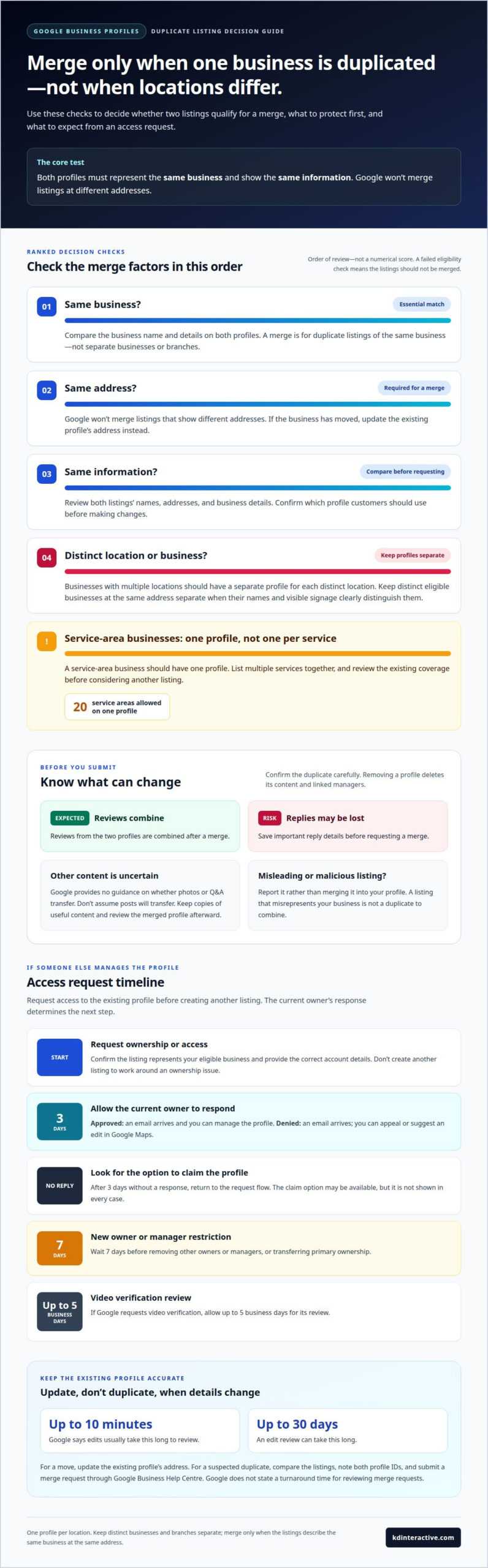
Google’s requirements for merging duplicate profiles
Google reviews merge requests based on whether the profiles represent the same business and show the same information. Use these checks to decide whether a merge is appropriate before submitting a request.
- Compare the business names, addresses, and details on both profiles. A merge is intended for listings representing the same business, not simply businesses with similar names. Confirm that the profiles describe the same operation and location, then correct inconsistent information before requesting a merge. Matching details help clarify the relationship between the listings.
- Confirm that both profiles show the same address. Google won’t merge listings with different addresses, so update the existing profile after a move instead. A previous address and a current address aren’t a reason to combine two listings as duplicates. The key distinction is whether one business has moved or two profiles represent the same business at one location.
- Include every duplicate that meets the criteria. More than two profiles may be merged when they represent the same business at the same address and contain broadly the same information. Compare each listing with the others rather than assuming that all similar profiles qualify. Leave out listings for separate branches or businesses.
- Keep distinct businesses separate, even when they share an address. Google allows separate profiles for eligible businesses at the same address when their names differ and their signage clearly distinguishes them. For example, compare each business’s name and visible signage before treating two profiles in one building as duplicates. A shared address alone doesn’t mean the profiles represent one business.
- Make your decision based on identity, location, and information together. A shared address with different business names and distinct signage points toward separate profiles. Matching names and details at the same address may support a merge request. If the profiles don’t meet those criteria, correct the existing listing or keep them separate rather than forcing a merge.
KD Interactive: Local SEO Services
KD Interactive helps businesses strengthen local search visibility with Local SEO Services, SEO Keyword Analysis, and Content Creation. Once you’ve addressed duplicate listings and access, these services can help align your business information and local content across your online presence.
Turn to local SEO support when accurate profiles are only part of the challenge, such as when you also want to improve visibility for the services and locations you serve. SEO Keyword Analysis can inform the search terms your content targets, while Content Creation helps you develop useful material for prospective local customers.
Contact KD Interactive to discuss your local search goals and decide on a practical next step.
Build on a cleaner local presence
Once your profile issue is resolved, treat it as the start of a stronger local search presence, not the finish line. Make sure the information customers find across your online content reflects the business you operate today. Clear, useful pages and announcements can explain what your business offers and help potential customers decide whether it meets their needs.
A careful approach to merging duplicate Google Business Profiles can protect the accuracy of your online presence, while ongoing local SEO work can build on that accuracy to improve broader visibility. KD Interactive offers Local SEO Services, Content Creation, and Press Release Distribution to support those next steps. Choose the work that fits your priorities, whether you want to improve local visibility, develop relevant content, or share a business announcement.
Take the next step at your pace. Explore how KD Interactive can support your local search goals, and keep building a clear, credible presence for the customers you want to reach.
Frequently Asked Questions
What’s the Difference Between Merging A GBP Listing & Moving A GBP Listing?
Updating an address reflects a move by the same business; merging combines duplicate profiles for one business. For example, a shop relocating should update its existing profile, not create a second listing and merge them later. Treat a change of address as a move, and consider a merge only when two profiles describe the same business at the same location.
Why Should You Care About Duplicate GBP Listings?
Duplicate profiles can show customers conflicting details, such as different phone numbers or hours. Google may mark a duplicate profile so it doesn’t appear on Search or Maps. Compare the business name, address, and contact details on each listing to see what customers find. Keep one accurate profile for each business location, rather than separate profiles for individual services.
When should duplicate Google Business Profiles be merged versus removed?
Merge profiles when both represent the same business and meet Google’s requirements. Report a listing that appears malicious or falsely represents your business instead of combining it with your legitimate profile. Before removing a listing, identify its content and linked managers, since removal deletes them. For instance, confirm which profile has the correct location and business details before deciding what to retain.
How do you merge duplicate Google Business Profiles step by step?
First, compare the profiles and confirm they represent the same business at the same address. Then record each profile ID and open the relevant issue in Google Business Help Centre. Submit the merge request with the IDs and keep a record of what you submitted. Review the profiles afterward to see whether their status or visibility has changed.
How do you request a duplicate profile merge through Google Business Profile support?
In Google Business Help Centre, select the relevant profile and choose the merge issue. Provide the profile IDs for the listings you want reviewed, along with clear details showing that they represent the same business. Keep the IDs and submission details handy in case you need to follow up. Google reviews merge requests, so approval isn’t automatic.
What eligibility rules apply to merging Google Business Profiles?
Compare the profiles to see whether they appear to describe the same business and have broadly consistent details. Listings at different addresses aren’t eligible for a merge. More than two profiles may be included if they represent the same business at the same address and broadly match. Separate eligible businesses can share an address when their names differ and their signage clearly distinguishes them.