
Holiday hours can quickly confuse customers if they’re not managed carefully. To learn how to update business hours everywhere online, keep your regular weekly schedule separate from holiday hours and temporary closures. Update the relevant Google Business Profile hours, then make sure your website, public listings, and booking options show the same schedule.
A saved change may not appear everywhere straight away: Google may review an update, and other listings may take time to refresh. This guide explains how to set regular hours, add holiday exceptions, handle an unexpected closure, and check the details customers see. It also covers aligning your website and booking availability with your current schedule, so customers can plan with fewer surprises.
Key Takeaways
- Keep your normal weekly schedule distinct from temporary changes so customers can tell what hours to expect.
- Update each Google Business Profile location to reflect its current schedule, including split hours where needed.
- Use holiday and temporary-closure settings for short-term exceptions, then restore your regular schedule when they end.
- Review public listings, website details, and booking availability together to catch mismatches customers could encounter.
Defining regular hours, exceptions, and service availability
Start with one accurate weekly schedule and record temporary changes separately. This keeps holiday notices from replacing the hours customers expect during a normal week.
-
Set regular weekly hours
Write down the hours customers can reliably visit or call on each day, including days the business is closed. For example, a shop open Monday through Friday from 9 AM to 5 PM should use that pattern as its regular schedule. In Apple Business Connect, select the business location and edit its displayed hours; then review the listing in Apple Maps. Keep appointment-only or variable schedules accurate rather than implying walk-in availability.
-
Separate regular hours from exceptions
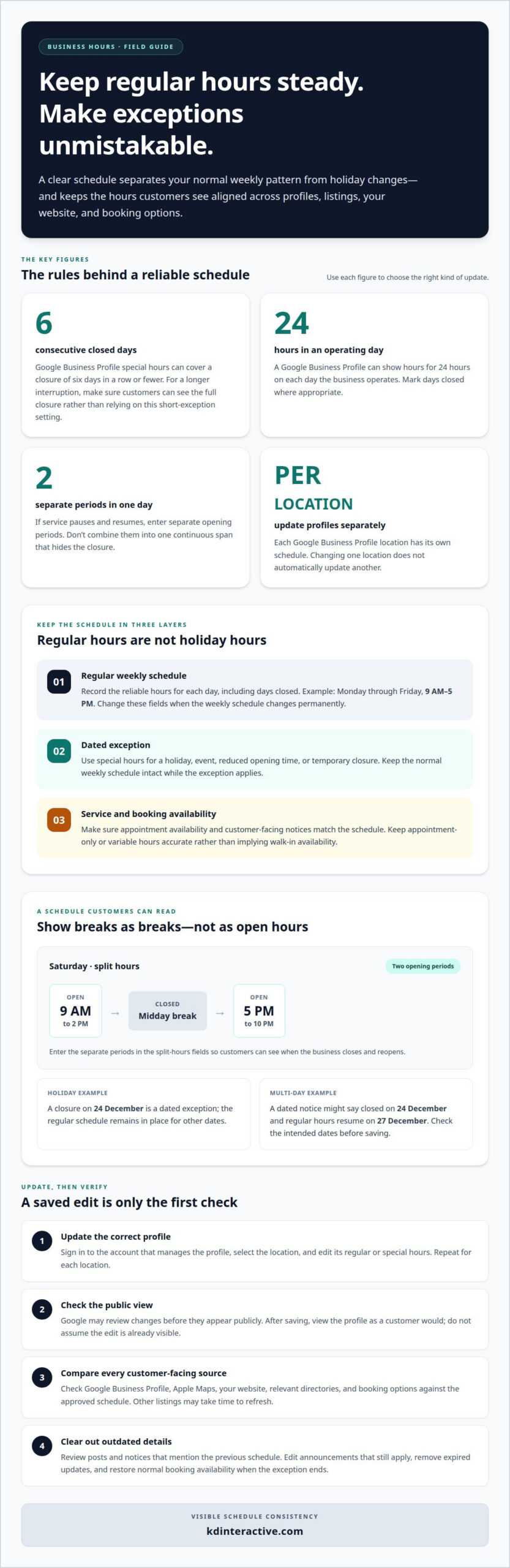
Keep the usual weekly schedule in the regular-hours fields, and use special hours for a holiday or temporary closure. Google Business Profile treats special hours as exceptions, not replacements for a lasting weekly change. For example, a closure on 24 December should be entered as a dated exception; the regular schedule remains in place for other dates. If the weekly schedule changes permanently, update regular hours instead.
-
Correct inconsistent directory hours
Search for your business by name, address, and phone number, then record each result and its displayed hours. Include Google Business Profile, Apple Maps, your website, and relevant directories. Compare each listing with the approved weekly schedule and dated exceptions. Correct the records you can manage, and track any remaining differences for follow-up. This inventory shows where customers might encounter conflicting information.
Search your business name alongside its city and address, then check map results and directory profiles. Inaccurate hours can send customers to a closed location and undermine trust. Conflicting details can also make your local search information less consistent.
Editing Google Business Profile hours
Sign in to the account that manages your existing Google Business Profile, select the location, and edit its hours. You need access to the profile to make a routine update. Google may review changes before they appear publicly.
- Open the profile and choose the hours editing option. Enter the regular opening and closing times for each day, marking days closed where appropriate. Google Business Profile allows a business to set hours for 24 hours on each day it operates. Save the changes, then check the public profile rather than assuming the edit is already visible.
- Enter separate opening periods when the business closes and reopens on the same day. For example, a Saturday schedule can show 9 AM to 2 PM, then 5 PM to 10 PM. Use the split-hours fields instead of combining both periods into one continuous opening time. This keeps the midday closure clear to customers viewing the profile.
- If your business has multiple locations, update each one separately. Google treats each location as its own profile, so changing one location’s schedule won’t automatically update another’s. Select each location and compare its hours with the actual schedule before saving. Don’t create a second profile to represent a different schedule.
- Review posts that mention a previous schedule after changing profile hours. Edit a post if its announcement still applies but its times have changed; remove it if it describes an expired update. Then view the profile as a customer would and confirm the displayed hours and posts agree. If profile management is part of a broader visibility plan, Google Map Pack support can help connect local search visibility with profile management.
Adding special hours for holidays or events
- Choose the exact holiday or event dates before editing Google Business Profile. Add special hours for each affected date, including reduced opening times or a full-day closure. Google Business Profile special hours can be used when a business remains closed for six days in a row or fewer. Keep the regular weekly schedule intact so a temporary exception doesn’t become permanent.
- Confirm holiday hours in the profile even if your business will follow its usual schedule. This makes the date-specific status clear to customers. If you’ll be open, enter the usual opening and closing times for the holiday. If you’ll be closed, mark the business closed for that date.
- Check the dates and times before saving, especially when an event affects more than one day. A dated notice might say the business is closed on 24 December and regular hours resume on 27 December. Make sure the exception covers the intended closure, and that the profile’s regular schedule remains correct for dates outside that period. Avoid changing every weekday to closed for a brief holiday.
- After saving, view your public Google profile to check whether the special hours appear. Google reviews profile edits before they go live, so a saved change may not be immediately visible. Keep closure information consistent across customer-facing notices and booking options while the exception applies. When normal service resumes, remove expired notices and check that appointments are available again.
Treat each exception as a date-specific instruction, not a replacement for the ongoing schedule. Google Business Profile special hours can be used when a business remains closed for 6 days in a row or fewer. For a longer interruption, make sure the information customers see still describes the full closure, rather than relying on a setting intended for shorter exceptions.
Google advises businesses to confirm holiday hours even when they’re unchanged. Before saving, compare the selected dates with your service plan, then check the public profile after Google reviews the edits. If an event affects service temporarily, preserve the regular schedule and update dated notices when the exception ends. Consistent information helps customers distinguish usual hours from a temporary arrangement.
Verifying public listings and customer booking flows
Compare the hours customers can see with the schedule your business intends to keep. Check your website, listings, and booking path, not just the editing screen.
-
Update website and booking platform hours
Change the hours shown on your website and in each booking platform you use. Check the footer, appointment instructions, confirmation messages, embedded map, and booking widget for old schedules. Make booking availability agree with the website. For example, if the business closes at 4 p.m., confirm the scheduling system doesn’t offer a 4:30 p.m. appointment. If your site uses LocalBusiness structured data, make its openingHoursSpecification match the visible hours.
-
Check when listing updates appear
Review each public listing after saving an edit. Platforms don’t all display changes at the same time. Google says it reviews edits to a Business Profile before they appear live, so saving an edit does not guarantee customers will see it immediately. Other directories and services may refresh on different schedules. Check what customers see instead of assuming every listing has updated.
- Open your website in a fresh browser session on a mobile device to see the public-facing version, rather than a cached page or account preview. Check the displayed hours, map, and booking options together. Some listings also feed information to smartphones and GPS devices, so accurate public records matter beyond directory pages.
After a temporary closure, remove expired notices and confirm customers can book again during normal hours. Check a complete customer journey, from the search listing to the final booking confirmation. If website wording and schedule details need to stay aligned, get support with website content creation for clear, consistent updates.
Check the public website and compare its displayed hours with your booking tool. After making changes, revisit the public view instead of relying on an edit confirmation. Google provides an alert when a business has not recently confirmed its hours.
KD Interactive
KD Interactive can help when keeping business information consistent across local search and customer-facing content becomes difficult. Its Local SEO Services support small businesses working to improve online visibility, while Content Creation can help communicate schedule changes clearly on relevant website pages. SEO Keyword Analysis can also inform how local customers find your business online.
If your business manages regular hours, holiday exceptions, and unexpected closures, a clear process can help keep public information aligned. KD Interactive can support your broader local visibility efforts, while you remain responsible for confirming your actual operating schedule and booking availability.
Contact KD Interactive to discuss your local search and content needs.
Make accurate hours part of your operating routine
Business hours are more than a listing detail. They shape how people plan visits, appointments, and calls, so keeping them current should be part of your business routine. A clear record of schedule changes helps whoever manages your digital presence communicate updates and keep customer-facing information aligned.
A reliable process for how to update business hours everywhere online also supports a stronger local presence. KD Interactive offers Local SEO Services, Content Creation, and Press Release Distribution to help businesses strengthen visibility and communicate with their audiences. These services can complement your operational process by supporting discoverability and clear, timely information.
Ready to strengthen your local visibility and communicate more clearly with customers? Contact KD Interactive for help. A thoughtful approach to your online presence can help customers find the information they need with confidence.
Frequently Asked Questions
What about holiday hours or an unexpected closure?
For a holiday or sudden closure, publish a notice with the affected date and whether the business will reopen on a different schedule. When planning how to update business hours everywhere online, include customer-facing updates and booking instructions that could otherwise cause confusion. If existing appointments are affected, communicate the change through your booking process. Remove or revise the notice when it no longer applies.
How to update business hours on Google Business Profile
Sign in to the account that manages your existing Google Business Profile, select the correct location, and open its hours settings. Change the relevant days and times, including separate opening periods if the business closes between services. This is a key step in how to update business hours everywhere online, but it changes only that profile. Save the edit, view the public profile, and update each location separately.
How to set special or holiday hours on business listings
Use date-specific exception controls in each listing you manage instead of changing the usual weekly schedule. Enter the holiday date and the hours customers should expect, or mark the business closed. Google Business Profile special hours can cover closures lasting six days in a row or fewer. Confirm holiday hours even if they match the regular schedule, then review each listing’s public display.
What documents or verification are needed to change business hours on Google Business Profile?
Sign in to the account that manages your existing Google Business Profile and select the location. You need access to that profile to make a routine update.