
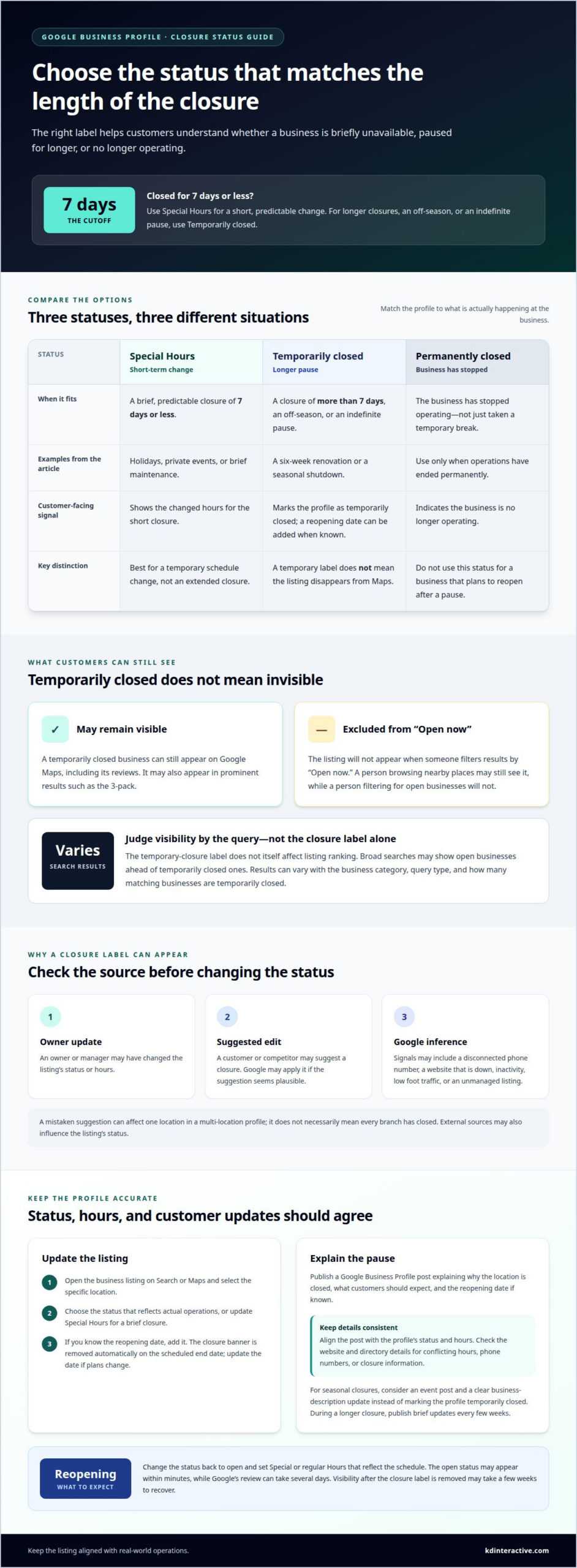
A temporary closure notice on Google Business Profile is generally appropriate when a business will be closed for more than 7 days, for the off-season, or indefinitely. For a closure of 7 days or less, use Special Hours instead. The notice can appear because an owner updates the profile, someone suggests a closure that Google considers plausible, or Google infers a closure from signals such as a disconnected phone number or a website that’s down.
It’s understandable to worry that a closure label means customers can no longer find your business. A temporarily closed profile can still appear on Google Maps with its reviews, but it won’t appear when someone filters results by “Open now.”
This article explains why a temporary closure notice on Google Business Profile may appear, how it can affect visibility in Maps and Search, and how to use Google Business Profile posts to explain the closure and share a reopening date if you know it. You’ll also learn when Special Hours are the clearer choice, so customers get an accurate picture of your business.
Key Takeaways
- Match the profile status to the kind and length of closure, and use Special Hours for short, predictable changes.
- Understand why a closed label doesn’t automatically erase a listing, while visibility in search can vary with the query and business category.
- Use a Google Business Profile post to explain the pause, share a reopening date when known, and keep customers updated during a longer closure.
- If the notice is incorrect, update the profile status and hours, then use the appropriate support route if the listing still won’t reopen.
What Causes a Google Business Profile to Show as Temporarily Closed?
A closure label can result from an owner’s update, a suggested edit, or information Google uses to infer that a business has closed. You can mark one location temporarily closed in a multi-location profile by selecting that specific listing.
-
Identify Why the Listing Shows as Closed
Open the listing on Google Maps and check whether it says temporarily closed or permanently closed. A customer or competitor can suggest that a business is closed, and Google may apply the edit if it considers the suggestion plausible. Compare the label with the business’s actual status before making changes. A mistaken suggestion can affect one location without meaning every branch has closed.
-
Check for a Google-Assigned Closure
Review the listing’s status and consider whether Google may have inferred a closure. A disconnected phone number, a website that’s down, inactivity, low foot traffic, or an unmanaged listing can contribute to that assessment. External sources may also provide information that changes the status. If the business is open, don’t assume the label means an owner marked it closed.
- Choose special hours for a short, predictable change. A business closed for 7 days or less should use Special Hours; this suits holidays, private events, or brief maintenance. For a closure longer than 7 days, an off-season, or an indefinite pause, use temporarily closed. A six-week renovation is one example. Permanently closed means the business has stopped operating, not that it’s taking a temporary break.
- Change the status through the listing’s management options on Search or Maps. Select the specific location, open its business information, choose temporarily closed, and save. For a brief closure, update Special Hours instead. If the business has shut permanently, choose permanently closed. Keep the status aligned with actual operations so customers aren’t given the wrong information.
How temporary closure status affects Maps and search visibility
- Keep the listing available to customers looking for its location or past reviews. A temporarily closed business can still appear on Google Maps with its reviews, but it’s excluded when someone selects the “Open now” filter. This difference matters during a holiday: someone browsing nearby places may still see the listing, while someone looking for an open business won’t see it in filtered results. Make sure the status reflects the actual opening situation.
- Assess rankings by query, not by the closure label alone. As of March 26th, the temporarily closed label does not affect a Google Business Profile listing’s ranking. However, broad searches can show open businesses ahead of temporarily closed ones. Results vary with the business category, query type, and how many matching businesses are temporarily closed. A listing may still appear in the 3-pack, so don’t assume the status automatically removes it from every prominent result.
- When the business reopens, change its status to open and set special or regular hours that reflect the opening schedule. The open status may appear within minutes, while Google’s review of the change can take several days. Visibility after the closure label is removed may take a few weeks to recover. Keep customer-facing details accurate during that period, and use Google Maps visibility support to strengthen your local search presence.
- Review Google Ads separately before and during the closure. Check whether active campaigns direct customers to visit in person, then adjust messaging or campaign settings to match the business’s operating status. A reported hotel-ad case described ads stopping after its location was marked temporarily closed, within 24/48 hours. Treat that as an example, not a guarantee of how every campaign behaves. Recheck ads around the reopening date, too.
Using Google Business Profile posts to communicate closures
A manager can change the reopening date for a temporary closure or reopen the business early. A missing or incorrect label may result from community edits, external sources, or inconsistent details across the website, directories, and profile.
-
Publish a Closure Update
Publish a Google Business Profile post explaining why the location is closed, what customers should expect, and the reopening date if known. Align the post with the profile’s status and hours, so it doesn’t say “open” while the listing shows closed. For seasonal closures, consider an event post and a clear business-description update instead of marking the profile temporarily closed.
-
Check Whether a Reopening Date Can Be Set
Add or edit the reopening date in the listing’s temporary-closure management options when you know it. The closure banner is removed automatically on the scheduled end date. If plans change, update the date. If the business can reopen early, change its status back to open instead of leaving an outdated notice. Avoid promising a date customers can’t rely on.
-
Investigate a Missing or Incorrect Closure Label
Check the profile, business website, and directory details for conflicting hours, phone numbers, or closure information. A customer or competitor may suggest an edit, and external sources can also influence the status. Inconsistent details, especially after a move or rebrand, can trigger an automated flag. Correct any mismatched information, then review the listing’s status again.
- Use Special Hours for short, predictable changes. If you still serve customers online or curbside, update the relevant services or attributes. During a longer closure, publish brief updates every few weeks. If Google continues to show the location as temporarily closed, post regularly for a couple of weeks. Make each update specific, such as the reopening schedule, service changes, or when customers can expect further news.
Temporary closure notices on Google Business Profile
- Read the notice as a customer-facing status, then compare it with the business’s actual plans. A temporary closure notice on Google Business Profile should accurately reflect whether the business is pausing, operating in another format, or closed indefinitely. If customers can still receive services online or through curbside pickup, update the relevant services or attributes instead of marking the business closed. This helps visitors understand how they can still do business with you.
- Set a reopening date only when it reflects a real plan. The closure banner is automatically removed on its scheduled end date, so an outdated date can mislead customers. If the business expects to reopen early, use the listing’s management options to change the status back to open. If the closure continues for months without a reopening plan, consider whether permanently closed is more accurate.
- Keep business hours consistent with the selected status. During a temporary closure, the profile can remain open with no main hours, or each day can be set to closed for the closure period. After changing the status to open, make sure the hours show the actual schedule. This prevents a temporary notice, closed hours, and a reopening message from giving customers conflicting information.
- Correct an inaccurate notice in the listing’s business information by changing the status to open and saving. If a temporary closure notice on Google Business Profile remains, confirm that the phone connects and the website loads; provide photos of the open business and supporting documents when contacting support. If the listing isn’t accessible in Google Maps, start by verifying it. A move requires an address update, while a sale with the same name and services calls for an ownership transfer.
KD Interactive: Google Map Pack with AI Assistant
KD Interactive helps businesses strengthen local search visibility after a closure or reopening. The Google Map Pack with AI Assistant and Local SEO Services can support a broader approach to local search, alongside accurate business information. For a reopening, Content Creation can help communicate clearly what customers should expect. Press Release Distribution can help share significant business news, such as a location reopening or seasonal return.
Turn to KD Interactive when your profile details are accurate but your local visibility and customer communication need a more considered strategy. The right next step depends on your goals, your listing’s status, and the information customers need. Contact KD Interactive to discuss support for your local search presence.
Turn your reopening into a stronger local presence
A closure can also be an opportunity to rethink how customers discover and hear from your business. Once your plans are clear, keep updates consistent across your profile and other customer-facing channels. A temporary closure notice on Google Business Profile is one part of that experience. The broader opportunity is to give people a clear reason to return and an easy way to find accurate information.
KD Interactive can support that next stage with Local SEO Services, Content Creation, and Press Release Distribution. These services can help shape your local search approach and communicate business news as operations change. The aim is practical: connect customers with the information they need through a stronger, more consistent presence in local search.
Contact KD Interactive to discuss your local visibility goals and the right next step for your business. With a clear plan and consistent communication, you can move forward with confidence.
Frequently Asked Questions
Does the listing rank when it’s marked “temporarily closed”?
Yes, a temporarily closed listing can still appear in Google Search and Maps, including in the 3-pack. The label itself does not necessarily determine its ranking. Search context matters: an “Open now” filter excludes the listing, while broad searches may show open businesses first. For example, a person searching a category without an open-now filter may still encounter the closed business.
How do I mark my business as open on Google again?
Open the business profile’s management options, change the status to open, and save. Then confirm that the displayed hours match the actual schedule, especially if the business is reopening with different hours. If the listing still won’t reopen through the available controls, submit a support ticket through Support in Google Business Profile Manager. Keeping the phone connection and website active also helps customers reach the business.
How long does it take for the closed label to disappear?
The open status may appear within minutes after you save the change, but Google’s review can take several days. These are separate stages: a profile may display as open before its visibility fully recovers. Search visibility may take a few weeks to recover after the closure label is removed. Check both the profile status and how the listing appears to customers.
How do I mark a Google Business Profile as temporarily closed?
Use the listing’s management options on Google Search or Maps, select the correct business location, open its business information, choose temporarily closed, and save. For a business with multiple locations, apply the change only to the location pausing operations. Before saving, make sure the selected profile belongs to that branch, not another location with different hours.
What are the steps to add a temporary closure notice to a Google Business Profile?
In the managed profile, select the business location, open its business information, set the status to temporarily closed, and save. Add or edit a reopening date if you have a reliable one; the closure banner is scheduled to end on that date. Make a separate customer update clear about the reason for closing and any service changes, so the notice isn’t the only information visitors see.
How long can a Google Business Profile remain temporarily closed?
A profile can use temporary closure status for a pause lasting weeks to months, such as a renovation or seasonal break. Review the status if the closure continues for months without a reopening plan. If the business has stopped operating indefinitely, permanently closed may better reflect its situation. Choose the status that matches the business’s plans, rather than leaving an outdated reopening expectation on the profile.