
What if the Google profile showing your business is already controlled by someone else? The right next step isn’t to create another listing. Learning how to claim an unmanaged business profile starts with finding out whether it’s unclaimed or whether another person has ownership.
If no one at your business can update the listing, it’s understandable to worry about losing control or making the problem worse. Start by checking the profile’s status. If it’s unclaimed, follow Google’s claim process. If another person owns it, request access to the existing profile. Google gives the owner three days to respond to an access request.
This guide explains each route, what to expect during verification, and how to protect your access afterward. Google determines which verification methods are available, so follow the option shown for your profile instead of creating a duplicate. Claiming and managing a standard Google Business Profile is free, so be cautious of messages demanding payment to unlock it.
Once you have access, keep the information accurate and assign access to the people responsible for maintaining it. A complete, up-to-date profile can support your broader local visibility efforts.
Key Takeaways
- Confirm that the business is eligible and prepare accurate details before you start.
- Choose the right process for an unclaimed profile or one managed by another account.
- If someone else owns the profile, request access through Google instead of creating a duplicate.
- After gaining access, review the details and give authorized users their own access rather than sharing a password.
- Accurate profile information can support local visibility as part of a broader SEO strategy.
What does it mean to claim an unmanaged Google Business Profile?
An unmanaged Google Business Profile is a listing for a real business that no one at the business can currently access through an authorized account. “Unmanaged” describes the business’s situation, not necessarily the profile’s status in Google’s system. A listing can appear in Search or Maps even if you’ve never created it, and another person may already have verified and managed it.
Control matters because the profile can display details customers rely on, including your hours, phone number, location or service area, and website. Access also lets authorized users respond to customer reviews and update information when the business changes. For a business building visibility through local search engine optimization, accurate profile details are one part of a consistent presence across local search.
Claiming means seeking authorized control of the existing listing. Creating a new profile starts a separate listing, which can confuse customers if the original already represents your business. First identify who, if anyone, currently manages the profile. That distinction determines how to claim an unmanaged business profile without creating a duplicate.
How can you tell whether a profile is unclaimed?
Search the exact business name and location in Google Search and Google Maps. Compare the result with your real-world business details, then open the profile and look for Google’s current claim or ownership prompt. The wording and placement of controls can change, so use the options shown on the live profile and follow Google’s current instructions.
A visible listing alone doesn’t tell you whether it’s unclaimed. If Google offers a way to claim or manage the profile, follow that route and complete the verification steps presented. If Google indicates that someone else manages the listing, treat it as an access issue rather than starting a new listing.
Unclaimed profile or profile owned by someone else?
An unclaimed profile has no accessible verified owner representing the business. An owner-managed profile is already associated with another Google account, even if you and your current team can’t sign in to it. A former employee or marketing agency may still have access, so an unfamiliar owner doesn’t automatically mean the listing is fraudulent or should be replaced.
If another account owns the profile, request access through Google’s ownership process. Don’t create a second listing as a workaround. If possible, identify who may have managed the profile previously, then focus your request on the existing business listing. This helps you choose the right path and preserve the profile customers already find.
What to prepare before claiming a Google Business Profile
Preparation can help prevent delays and make it easier to choose the right ownership path. Before you begin, confirm that the profile represents an eligible business, gather accurate business details, and sign in with an account the business can retain. The person submitting the request must be authorized to represent the business.
Check business eligibility and profile details
Google’s eligibility rules depend on its current guidelines and how your business serves customers. Review the latest requirements before proceeding, especially if you operate from a service area rather than a customer-facing location. Search for the business on Google first, too. If a listing already exists, use its claim or access process instead of starting a new-profile workflow. For broader setup context, see this Google Business Page setup guide.
Prepare the details you’ll use to identify and represent the business. Check that they match your current operations and other official business materials:
- Official business name: Use the name customers recognize in the real world, not extra keywords or promotional wording.
- Address or service area: Have the correct business location ready, or the areas you serve if customers don’t visit your location.
- Phone and website: Use current contact details that connect customers to the business.
- Operating details: Check hours and other information customers rely on, including any current changes.
Choose a secure account and prepare for verification
Use a Google Account the business can retain access to, rather than relying on an employee’s personal account or a short-term contractor. Set up secure recovery options and store access details through your normal business processes. This helps maintain continuity if staff or marketing support changes. The person making the request must be authorized to act for the business.
Google determines which verification methods are available for each profile. Follow the option presented in the claiming workflow and prepare to provide the requested proof that the business operates as described. The method and review time can vary, so don’t assume a particular verification option or approval date. Accurate details and a business-controlled account give you a sound starting point for how to claim an unmanaged business profile.
Once access is established, consistent profile details can support broader local visibility. Explore Wisconsin local SEO support for help connecting profile accuracy with your wider search presence.
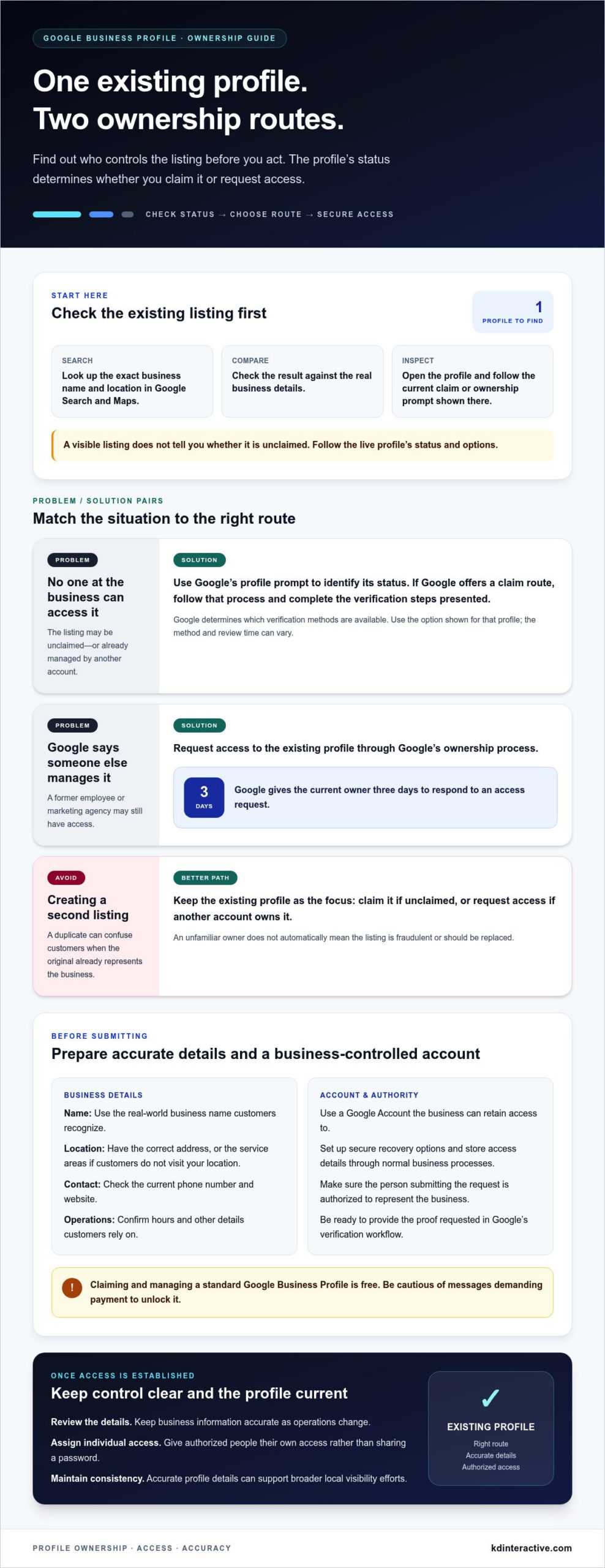
How to claim an unmanaged business profile step by step
Start with the existing listing, then follow the route that matches its ownership status. These steps show how to claim an unmanaged business profile without starting a duplicate. Google can change button labels and workflows, so use the options currently shown in Search or Maps and consult Google’s official Business Profile guidance if a screen differs.
Claim a profile that has no accessible owner
- Find the existing profile. Search the exact business name and location in Google Search or Google Maps. Open the listing that matches your business.
- Choose the claim option. Look for Google’s current option to claim or manage the business. The wording may vary. If Google indicates another account manages the profile, stop and use the access-request route below.
- Submit accurate details. Sign in to the Google Account the business controls, then provide the requested information. Make sure the business name and contact details reflect the real business and match the information you prepared.
- Follow the displayed verification instructions. Complete the method Google presents for that profile. Don’t assume you can select a particular method.
Request access if another account manages the profile
If Google identifies a current owner, use the request-access or request-ownership option shown in the profile workflow. Submit the request from a business-controlled account and provide accurate information. The current owner has three days to respond. If the request is denied or there’s no response, Google may offer a further route to claim the profile or appeal. Follow the options and instructions Google provides, and don’t create a second listing while resolving ownership.
Complete verification and confirm profile access
Verification methods depend on the business and profile. Google determines which options are available, so follow the specific instructions displayed rather than relying on a method described in an older guide. After verification, sign in to the business account and confirm that you can open the profile’s management controls. If you can’t, review the account status and any messages before trying another route.
Keep access with the business after the claim is complete. Accurate profile information helps customers find reliable details and supports a wider local visibility strategy. Learn more about the role of local SEO services for small businesses.
What if someone else owns the profile or your request gets stuck?
If Google says another account manages the listing, the profile isn’t unclaimed, even if nobody at your business can access it. The safest route is to request access to the existing profile. Creating a duplicate or trying to work around account controls can make ownership harder to resolve and confuse customers.
How to request access from the current profile owner
Open the existing profile in Google Search or Maps and follow the current option to request access or ownership. Google’s labels and permission terms can change, so follow the wording and instructions shown in the live workflow. Submit the request through an account controlled by the business, then check that account for Google’s messages and any required action.
The current owner has three days to respond to an ownership request. They may approve or deny it. If they don’t respond, Google may provide an option to claim the profile or appeal. Keep a record of when you submitted the request, which business account you used, and any related communications. These details help you track progress if you need to follow up.
What to do when ownership cannot be resolved
A stalled request and a verification problem are different issues. If the request is denied, unanswered, or still unresolved after the response period, return to the profile and review the next steps Google displays. Use the current Google Business Profile Help options for the situation, such as an ownership appeal or support path. If you’re stuck on verification, follow the instructions for that issue rather than submitting repeated ownership requests.
Keep your next steps factual and focused. Avoid:
- Creating another profile for the same business while the existing listing is under review.
- Submitting inaccurate edits or claims to try to gain control.
- Repeatedly sending invalid or misleading support requests, which can slow support handling.
Save relevant records, such as the request confirmation and messages from Google, and provide accurate business information if asked to support your request. The right escalation option and any response period can depend on the current process, so follow the latest instructions in Google’s official Help resources. Knowing how to claim an unmanaged business profile also means knowing when to pause and use the formal resolution path.
Once access is secure, accurate profile details can support your broader local visibility. Strengthen your local SEO strategy with practical support for keeping business information consistent.
After claiming: secure the profile and strengthen local visibility
Claiming the profile gives your business a way to manage its information. Next, make sure the listing reflects what customers will actually experience, and set up access so control doesn’t depend on one person’s login.
Protect business access after the claim
Review who can manage the profile and assign each authorized user an individual level of access suited to their role. Don’t share one account’s password. Keep account recovery details under business control, and periodically review permissions, especially after staffing or contractor changes. Remove access when someone no longer works with the business.
Write down who is responsible for profile updates and customer review responses. A simple record can name the responsible person, the tasks they handle, and where changes are documented. This gives your team a clear handoff if responsibilities shift and makes outdated information easier to spot.
Turn profile ownership into consistent local SEO
Review the listing carefully after access is established. Check that each detail is accurate:
- Business name and category: Use the real-world business name and categories that accurately describe what you do.
- Address or service area: Confirm the location or areas served match current operations.
- Phone number and website: Test that customers can reach the business through the listed contact details.
- Hours: Check regular hours and update them when the schedule changes.
Set a routine for reviewing profile changes, customer reviews, and available performance information. Consistent details across your profile and other business listings—including specialized directories like Constructology 101 for trade and construction professionals—support a broader local SEO program, alongside relevant website content and reputation management. Ownership makes accurate management possible, but it doesn’t guarantee search rankings. Visibility depends on a wider set of factors, so treat profile upkeep as one part of your local marketing, not a one-time fix.
For Wisconsin businesses building that broader strategy, explore local SEO support for your business and connect profile management with consistent local visibility.
Take control and build a stronger local presence
Claiming an existing Google Business Profile starts with identifying whether it’s unclaimed or managed by another account. Follow the matching route, complete the verification Google offers, and use its official access or appeal process if ownership gets stuck. Knowing how to claim an unmanaged business profile helps you avoid duplicates and puts accurate business information back within your control.
Once you have access, review key details, assign appropriate permissions to authorized users, and keep the profile current. Ownership is a practical foundation for local visibility, not a guarantee of rankings. Ongoing attention to profile information, customer reviews, and your broader online presence can help customers find reliable details about your business.
KD Interactive supports small businesses with Wisconsin-focused local SEO, content creation, and online reputation management. Strengthen your local visibility with KD Interactive and build a consistent strategy around your business profile and wider search presence. With secure access and a steady approach, you’re better positioned to keep your profile accurate and your business visible.
Frequently Asked Questions
How do I claim a Google Business Profile that nobody manages?
Find the existing business profile in Google Search or Maps, then follow Google’s current claim option and on-screen instructions. Submit accurate business details and complete the verification method offered for that profile. If you’re learning how to claim an unmanaged business profile, first check whether Google says another account manages it. If so, request access to the existing listing instead of creating a second profile for the same business.
Can I claim a Google Business Profile if someone else owns it?
You can request access through Google’s process, but you can’t simply take over an account held by another owner. Start from the existing profile and submit the request using a Google Account controlled by the business. Follow Google’s instructions and monitor the account for updates. If the request is denied or remains unresolved, use the current Business Profile Help options rather than creating a duplicate or trying to bypass account controls.
How long does it take to claim and verify a business profile?
Timing depends on the verification method Google offers and the profile’s circumstances. Phone or email verification, when available, may be nearly instant; video verification can take up to five business days. Other steps, including waiting for an owner’s response or a review, can affect the overall process. Follow the instructions shown in your account, monitor relevant messages, and respond promptly to requests. Don’t rely on a fixed completion date.
What happens if the current profile owner does not respond to my access request?
Check the status and next steps in the Google Account you used to submit the request. The current owner has three days to respond. If they don’t, Google may allow you to claim the profile or appeal, depending on the options available for that listing. Follow the instructions in the current workflow and keep a record of your request. Don’t create a duplicate profile while waiting or resolving ownership.
Do I need to create a new profile if I cannot claim the existing one?
First determine whether the existing profile is unclaimed or belongs to another account. Use the claim option for an unclaimed listing or request access if another account manages it. A duplicate listing can confuse customers and may conflict with Google’s guidelines. If ownership remains unresolved, follow the relevant steps in Google Business Profile Help rather than starting a new profile as a workaround.
What information do I need to claim a business profile?
Prepare the official business name, current phone number, website, operating hours, and address or service area, as applicable. Use details that accurately reflect the business and are consistent with its real-world information. Sign in with a Google Account the business controls, and make sure you’re authorized to represent it. Google chooses the verification method available for the profile, so follow the specific instructions shown during the claim process.
Can an SEO agency claim a Google Business Profile for a business?
An agency can help manage a profile when the business authorizes it and grants access through Google’s available permission settings. The business should retain control of its primary account and ownership rather than sharing a password. Give the agency only the access needed for its work, keep recovery details under business control, and review permissions when responsibilities change. Remove access when the agency’s work for the business ends.