
To learn how to see my competitors’ Google Business categories, start with the category shown on each public listing, then inspect its Google Maps page source for additional categories. A Google Business Profile can have one primary category and up to nine secondary categories. The primary category is usually visible, but it may not tell the whole story.
Competitors’ categories may seem easy to compare in search results, but not all are visible there. A quick search can miss useful details about the services a business is positioning itself to provide.
This guide explains what categories do, how to look for secondary categories in Google Maps, and how to compare them with competitors’ advertised services. Use the steps to spot patterns and assess which categories may fit your own business.
Key Takeaways
- Separate the category shown on a public listing from the additional categories that may require a closer look.
- Use a Google Maps listing’s page source to uncover category details that aren’t visible in ordinary search results.
- Compare competitors’ categories with the services they promote to spot meaningful patterns, not just category overlaps.
- Use competitor findings as research, then choose categories that accurately fit your own business and services.
What are Google Business Profile categories?
Free tools for learning how to see my competitors’ Google Business categories include Google Search, Google Maps, and your browser’s page source. Search and Maps show a listing’s primary category; inspecting its page source may reveal secondary categories.
Google recommends choosing specific categories that describe the business’s core work. Add only relevant categories, rather than filling every available slot.
- Search for a competitor by business name in Google Maps and read the category displayed on its profile. This is the primary category, which describes the business’s main identity. For example, a Toyota dealer may use “Toyota dealer” as its primary category. Record the exact wording before comparing it with another profile.
- Distinguish primary from secondary categories before drawing conclusions. A Google Business Profile can have one primary category and up to nine secondary categories. The primary category identifies the core business, while secondary categories describe related services. Google Search and Maps generally show users the primary category, not the full set.
- Look beyond the visible label when researching a competitor’s services. A Toyota dealer might also select “Car dealer” and “Used car dealer” as secondary categories. Compare these with the services the business actually promotes. A category alone doesn’t confirm that a service is currently available, so treat it as a research clue.
- Choose your own primary category by identifying the main service or business type customers seek. If your company offers several services, select the category that best represents its central purpose, then add only relevant secondary categories. If you’re deciding how to see my competitors’ Google Business categories, use the findings to guide research, not copy choices. Google has around 4000 business categories, so precise wording matters.
Secondary categories can support visibility for related services, but they should match services the business actually offers. Select only the secondary categories most appropriate to the business rather than filling every available option. A Google Business Profile can have 1 primary category, and businesses should use five or fewer total categories, including the primary category.
The Toyota dealer example shows how additional categories can describe related offerings: Car dealer and Used car dealer.
Why Google Business Profile categories matter for local visibility
- Compare the top three Google Business Profile results with lower-ranked local competitors for the same search. Record each business’s primary category, secondary categories, and visible services. A primary category helps determine which searches a profile may appear for, so differences can suggest useful patterns. They don’t prove that categories alone explain ranking differences. Location, relevance, and other profile details also affect what searchers see.
- Use the comparison to test a specific idea, not to copy a competitor. If the top three profiles share a category that lower-ranked profiles lack, check whether it describes your actual services. Categories also provide structured information for local pack results, “near me” searches, AI Overviews, and conversational search responses. A category that doesn’t describe your business can misrepresent your offer, even if a competitor uses it.
- Search for a current Google Business Profile category list when comparing exact labels. Google has thousands of categories and updates the available options over time, adding and removing them. Check the list for wording that accurately matches your main service, then compare relevant secondary categories. Don’t treat an old saved list as definitive: a category may change or disappear, affecting how you interpret a competitor’s profile.
- Audit your profile at least quarterly, reviewing categories alongside services, business details, and recent changes. To add or adjust a category, open your Google Business Profile editor, choose the business category field, and search for a relevant option. Keep the primary category focused on your core business, then add only accurate secondary categories. Compare the updated profile with your original competitor notes to track meaningful changes instead of reacting to every ranking movement.
The primary category is considered the single most important local ranking factor for a business in the local pack, so choose it deliberately. Frequently changing categories or selecting ones that don’t match your real-world services can reduce trust and visibility. Base your choices on services customers can actually receive, rather than imitating another profile.
In a study of 286 Google Business Profiles, 77 (27%) had no additional category. Review secondary options carefully, without adding categories lacking a genuine service match, and audit primary and secondary categories at least quarterly.
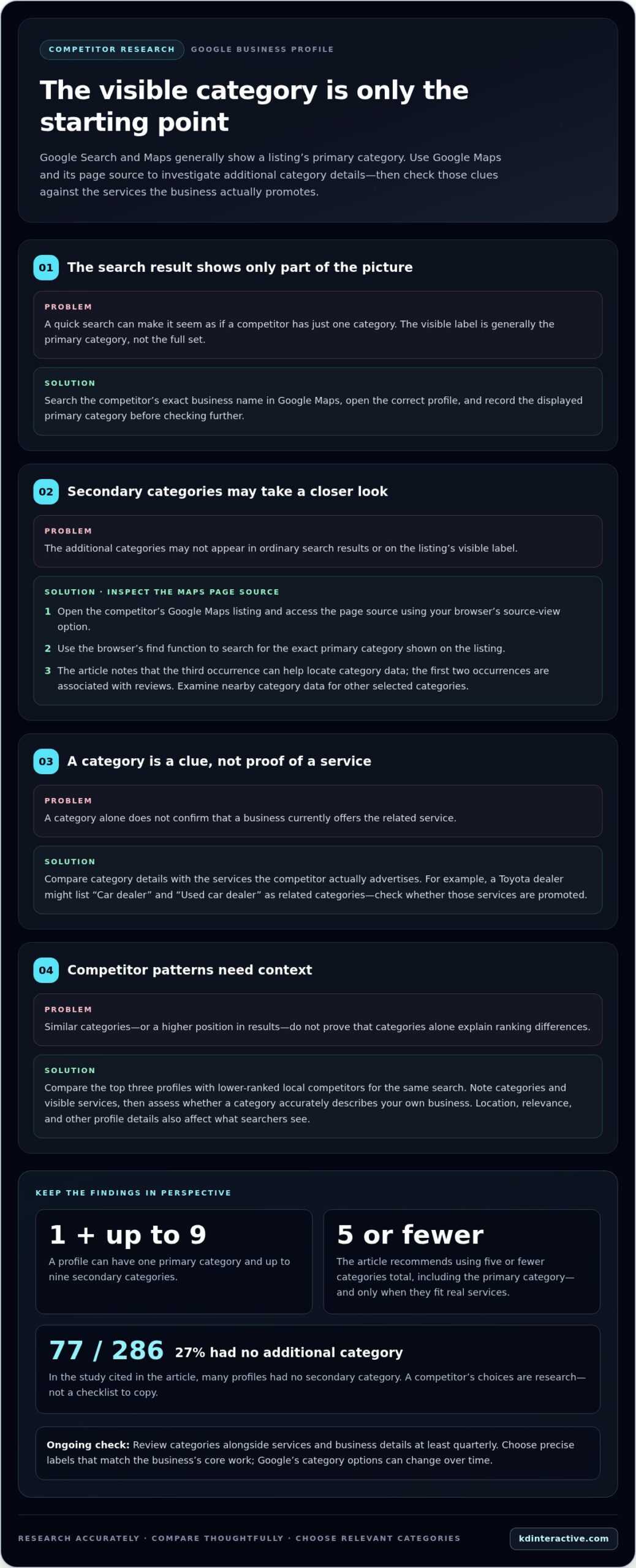
Checking competitors’ hidden secondary categories
To find secondary categories, open a competitor’s Google Maps listing and inspect its page source. Search the source for the primary category, then examine nearby category data for other selected categories.
- Open Google Maps and search for the competitor’s exact business name. Select the correct listing, especially if similar businesses share a name. The listing is your starting point because Google Search results usually display only the primary category. Keep the Maps tab open to compare its visible category with the source details.
- Open the page source for the Maps listing. In many desktop browsers, right-click the page and choose the option to view its source; keyboard shortcuts can also open it. Use the browser’s find function to search for the competitor’s primary category. Match the exact label shown on the listing before checking its occurrences.
- Find the third occurrence of the primary category in the page source. The first two occurrences are associated with reviews, so the third can help locate the category data. Examine the surrounding source for the business name and the word “null”; other selected categories appear after that point. The source code may reveal categories that aren’t visible on the public listing.
- Read the category sequence carefully and record each label separately. The category list in the source ends with “slash n,” which can help identify its boundary. Compare the results with the services the business actually advertises. For example, assess a repair shop’s additional category against its stated repair services, rather than treating it as proof on its own. Repeat the same search for each competitor to keep your notes consistent.
- If your first search returns only the primary label, search for it again and inspect its third occurrence before concluding that the listing has no secondary categories. A listing with only one category has no additional category to find. Record the business name, visible primary category, and any secondary categories you find, so your next comparison uses clear, separate fields.
Comparing multiple competitors’ categories and services
- Choose businesses competing for the same local searches, then record each listing’s categories and advertised services. Include businesses with both stronger and weaker visibility, not just those at the top. Keep the search phrase and location consistent across comparisons. This creates a useful baseline and helps distinguish category patterns from differences in service pages, business descriptions, and customer-facing offers.
- Build a simple comparison table with columns for business name, primary category, secondary categories, promoted services, and target keywords. A Local Search Grid report can show competitors’ primary and secondary categories for selected keywords. Use the same keyword set for each listing. This makes shared categories and notable differences easier to spot without treating one profile as the ideal model.
- Look for categories used by competitors that rank consistently higher, then test whether each matches a keyword phrase and a service your business genuinely provides. For example, if a higher-ranking listing uses a category tied to a specific service, compare it with your own profile and service information. A competitor’s category is a research clue, not a reason to claim services you don’t offer.
- Compare category choices with services shown on business websites and profiles. A category appearing across several relevant listings may reveal a common way local businesses describe an offering. Before changing your own listing, check that it accurately reflects the service. Track the category, keyword, and visible service together so later reviews can distinguish profile edits from other changes in search results.
- Use a consistent geographic scan if rankings shift by location. A 13-by-13 geo-grid scan contains 169 result pages, allowing you to compare visibility across a defined area instead of relying on one search point. Pair those results with your category-and-service table to identify patterns. Apply the findings to refine your profile strategy through local SEO services.
KD Interactive: Local SEO Services
KD Interactive helps businesses turn competitor research into a clearer local search strategy. When category comparisons reveal gaps between your services, profile, and target searches, its Local SEO Services can help address them. SEO Keyword Analysis can inform which search terms and services deserve attention, while Content Creation can align useful website content with your local search focus.
Competitor categories are clues, not a template. Connect category choices with your actual services and the searches you want to reach. To apply your findings to a practical local SEO plan, contact KD Interactive.
Turn competitor research into your next local SEO move
Knowing how to see my competitors’ Google Business categories gives you a starting point, not a strategy on its own. The next step is to connect what you find with your customers’ needs, the services you provide, and the local searches you want to reach. Keep a record of what you change and why, so future decisions are based on observation rather than imitation.
KD Interactive can help turn that analysis into practical next steps through Local SEO Services, Content Creation, and Press Release Distribution. Whether you need a clearer local search plan, relevant content that supports your services, or wider visibility for business news, focus on the work that fits your goals. Bring your category observations and priority search terms into the conversation to shape a focused approach for your business. Contact KD Interactive to discuss your local SEO goals. Make your next move with purpose and keep building on what you learn.
Frequently Asked Questions
What’s the difference between primary and secondary categories?
The primary category describes a business’s main identity, while secondary categories describe other relevant parts of its work. For example, a Toyota dealer could use “Toyota dealer” as its primary category and “Car dealer” as a secondary category. When assessing a profile, ask which category best fits the core business and whether each additional category reflects a real service.